import { CallbackUrls } from '../../../_imports';
Keycloak

The following fields are necessary in order to configure an external JWT signer with OpenZiti. This configuration will
enable authentication via JWTs obtained through an
Authorization Code Flow with PKCE or PKCE flow. These values are all found in the
Keycloak realm Clients page on the specified client settings page or via the discovery endpoint. For Keycloak
servers the discovery endpoint is generally at https://${keycloak.server}/${realm}/.well-known/openid-configuration.
The OpenID discovery endpoint can contain fields needed to configure the external jwt signer. Verify the URL used by your Keycloak instance. Often the realm URL + '.well-known/openid-configuration' such as https://keycloak.example.com/realms/zitirealm/.well-known/openid-configuration
| Field | Where to Find the Value in the Keycloak UI | Example |
|---|---|---|
| Issuer | The Keycloak realm URL | https://keycloak.example.com/realms/zitirealm |
| Client ID | Set when creating the client, also on the Clients list page | openziti-client |
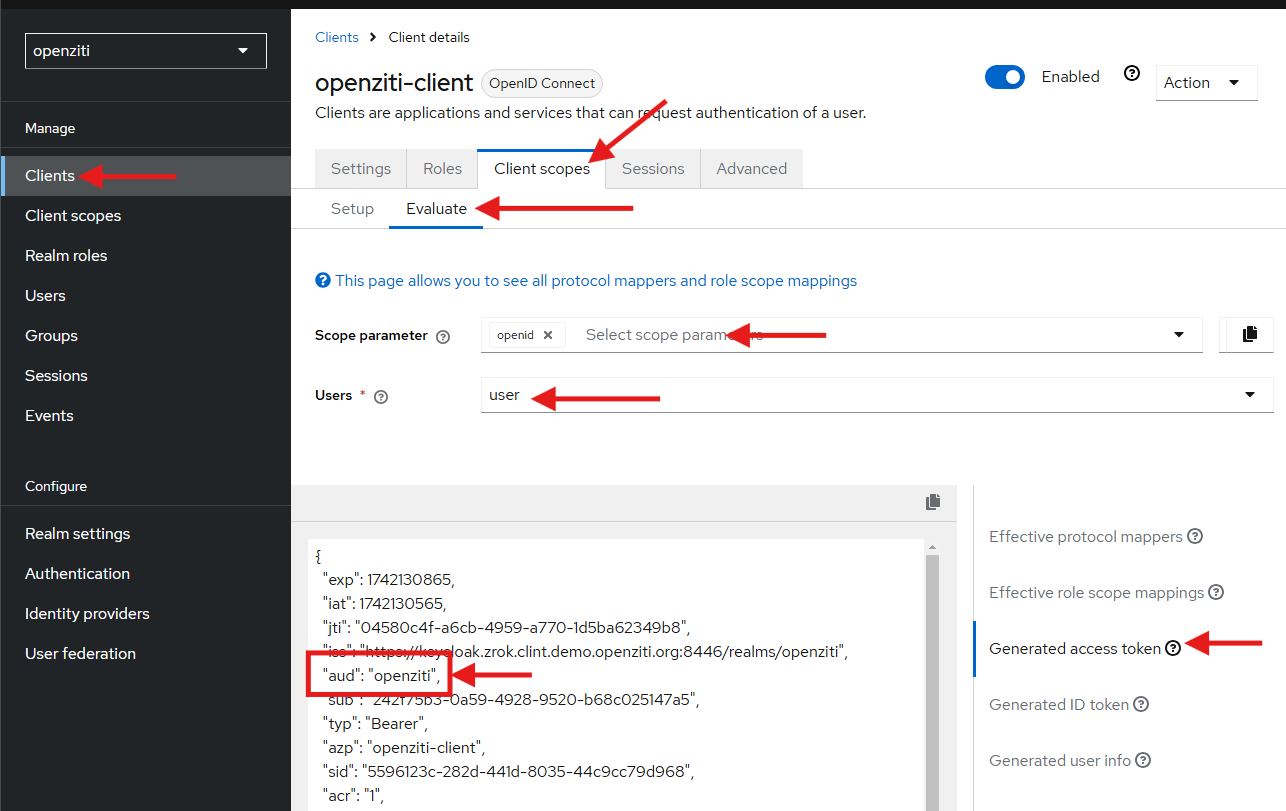
| Audience | From the Client Details->Client Scopes tab->Evaluate tab, pick a user and view the Generated access token | openziti-client |
| External Auth URL | The Keycloak realm URL | https://keycloak.example.com/realms/zitirealm |
| JWKS Endpoint | Use the jwks_uri field from the OpenID discovery endpoint. | https://keycloak.example.com/realms/zitirealm/protocol/openid-connect/certs |
| Claims Property | Often email, but can also be sub or any other claim contained in the JWT | |
| Scopes | openid included by default then any other standard or custom scope such as email, profileetc. | profile offline_access |
Create a Realm
A dedicated realm in Keycloak ensures isolation, security, and better management of users and applications. The
master realm is generally used for admin tasks, not hosting apps. Creating a separate realm reduces security risks,
simplifies maintenance, and allows custom authentication, roles, and policies tailored to your needs. It is
recommended (but not mandatory) you create a dedicated realm.
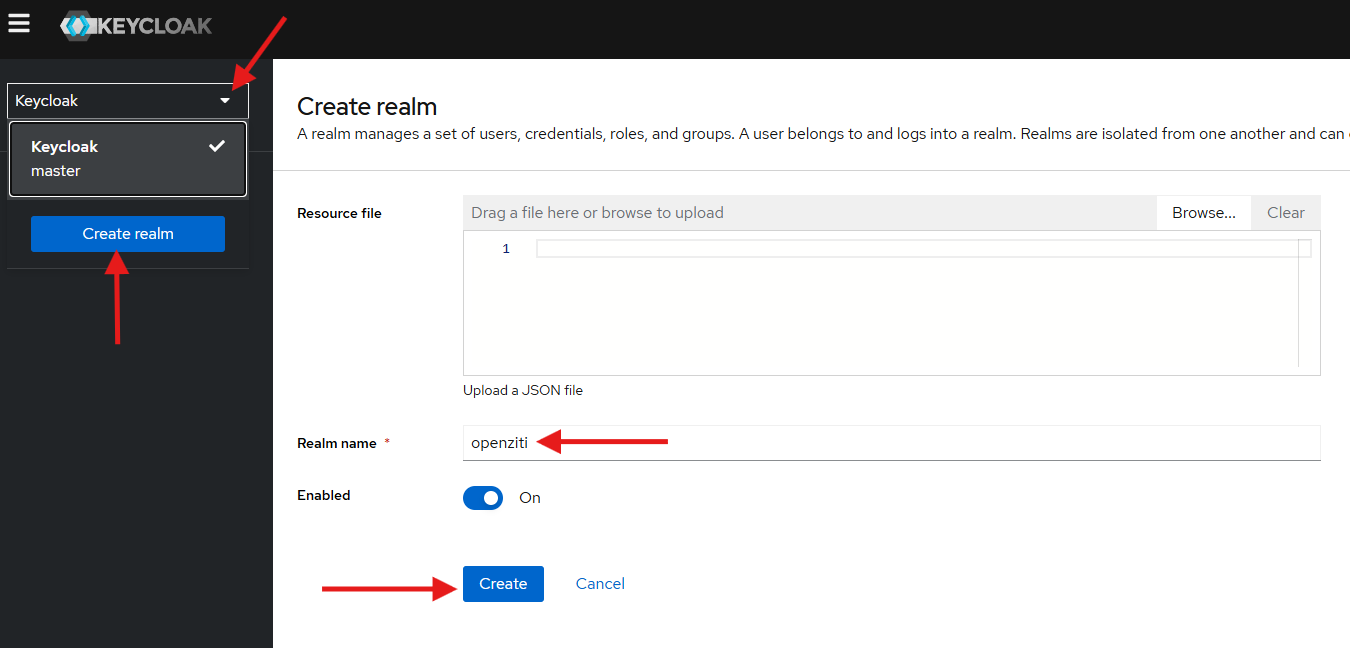
Click the dropdown in the upper left and choose Create realm. From the Create realm page enter a Realm name and click the Create button.
Create a Client
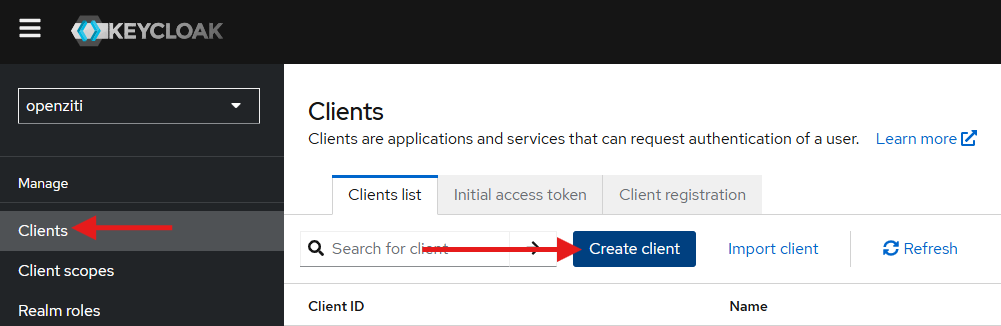
From the dedicated realm, click Clients and then choose Create client
Create Client - General Settings
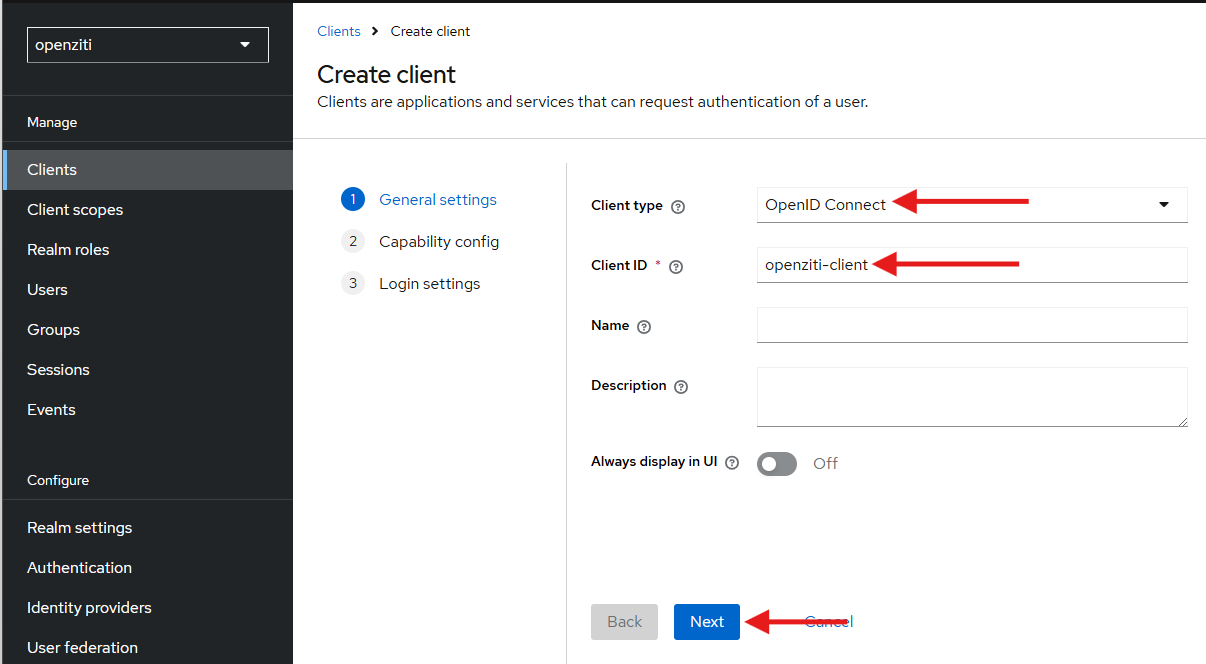
Under General Settings, ensure the Client type is set to OpenID Connect, enter a Client ID name and click the Next button.
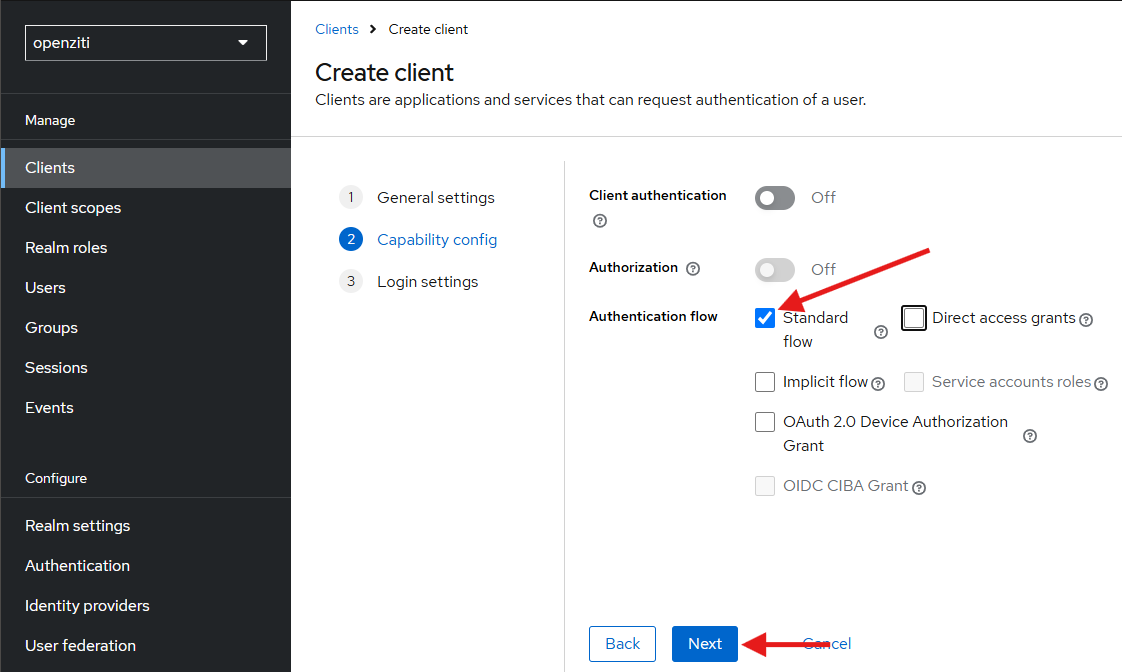
Create Client - Capability Config
On the Capability Config screen, ensure the Authentication flow has at a minimum the Standard flow selected. It is the only flow that is required to be checked. Click Next.
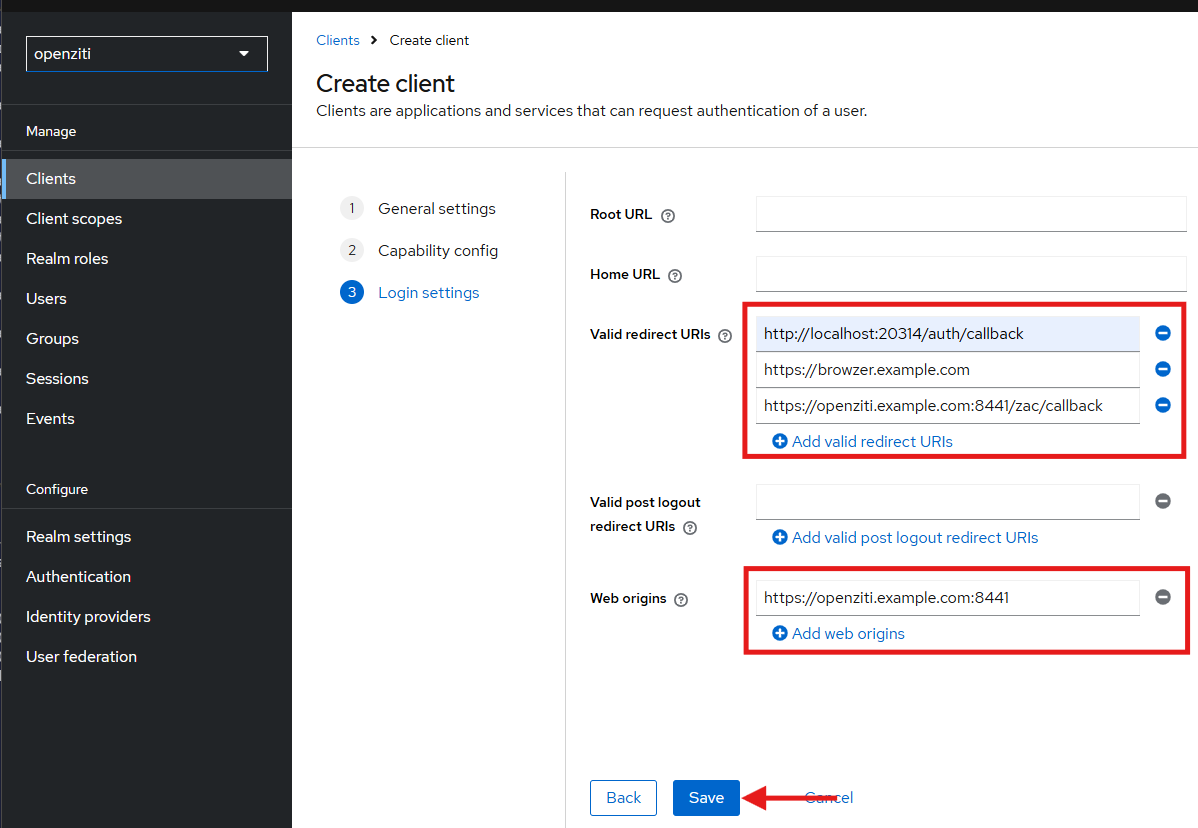
Create Client - Login Settings
Finish creating the client by adding Valid redirect URIs, Valid post logout redirect URIs and Web origins as necessary.
Callback URLs
Assign an Audience
Access tokens are expected generated for a specific audience. This requires the access token to have an aud
claim that is targeted for the API it's being sent to. To customize the access token's audience in Keycloak, after
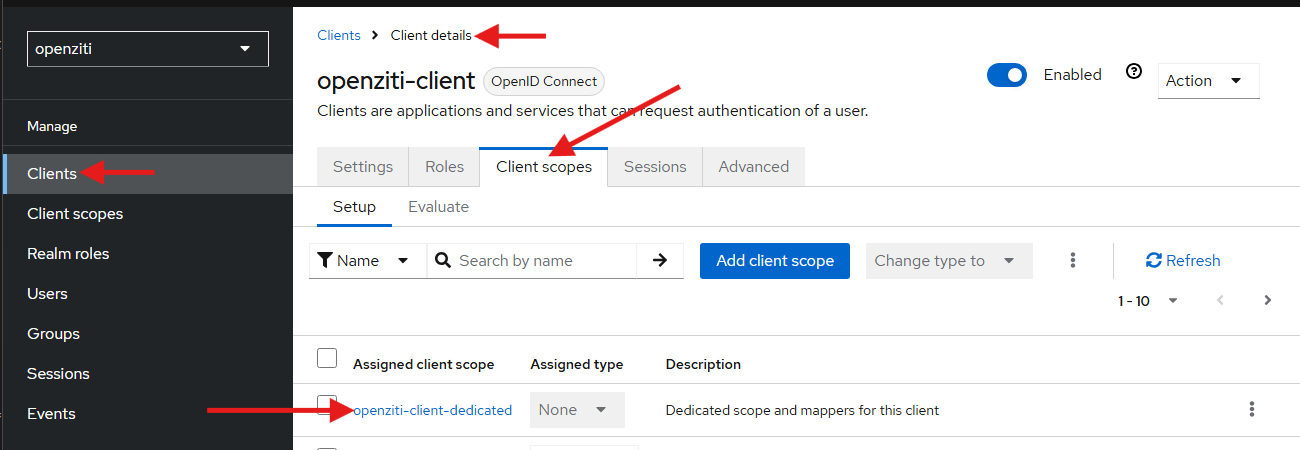
creating a client, ensure you're on the Client details screen then click the Client scopes tab and select it. On
the details page, find the predefined ${clientName}-dedicated scope and click it.
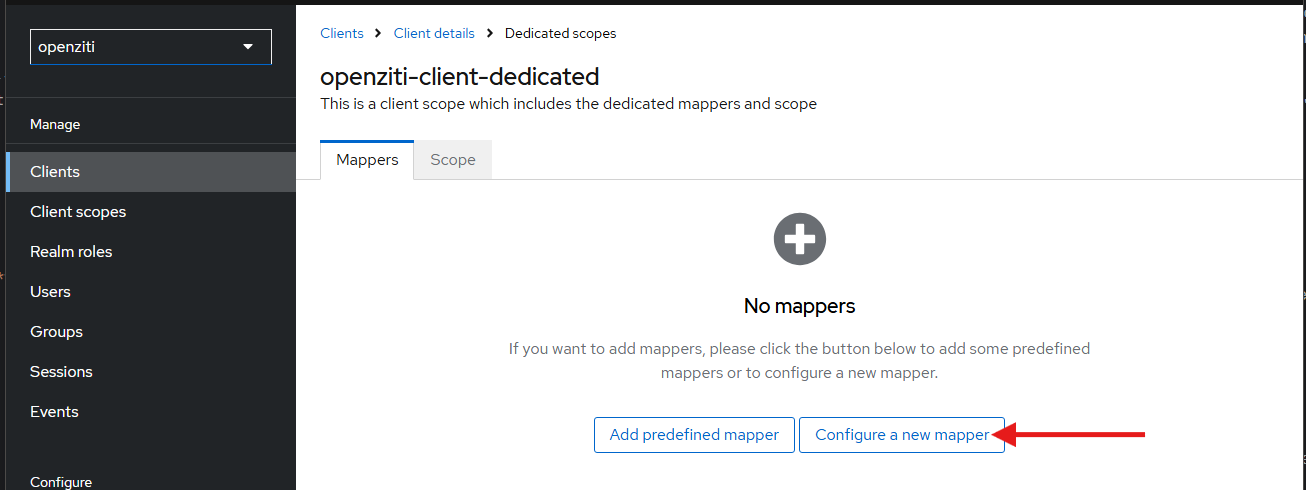
On the next page, click Configure a new mapper
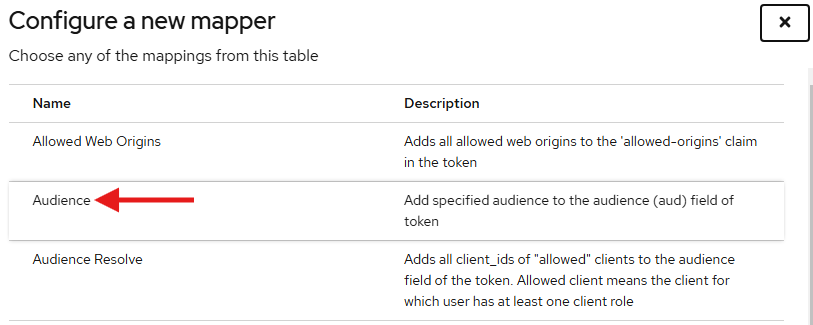
On the Configure a new mapper screen, select the Audience mapper.
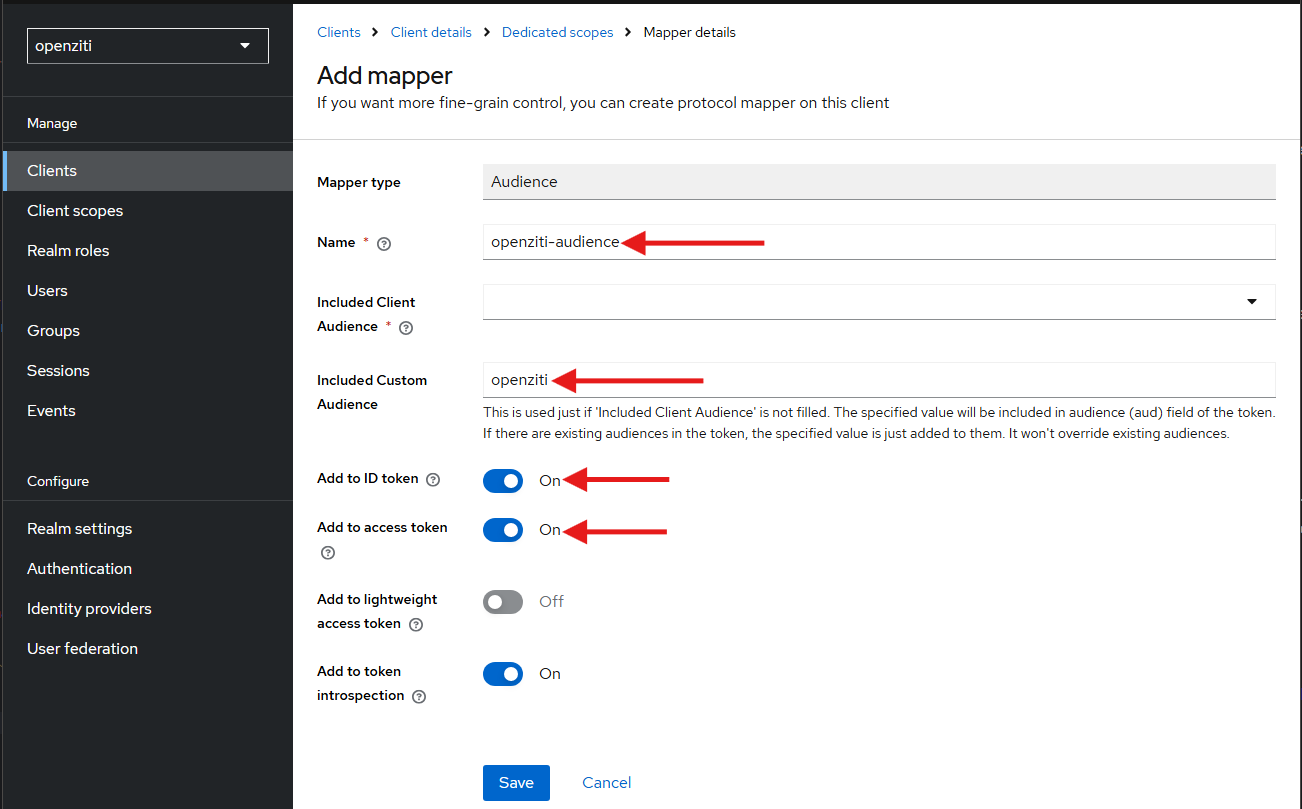
On the Add mapper screen, fill out the Name field and add your desired audience to the Included Custom Audience field. Ensure the audience is added to the access token and optionally, add it to the ID token as well.
Verifying Tokens in Keycloak
Keycloak has a very useful feature to allow you to view the tokens that will be generated. While on the client detail screen and Client scopes tab a somewhat hard to see sub-tab is available titled Evaluate, click on this tab.
From the next screen, choose any extra scopes you want to see applied to the token request, choose a user to view the token for and then click on the corresponding token to view, for example the Generated access token as shown below.